RM-01 · Automatic weekly scheduler
Tell it what you want to do.It finds the time.
List what you want to fit into your week: the gym four times, Spanish most days, deep work every weekday morning. Robot Mode finds a slot for every session, around your sleep, meals and fixed hours. You follow the plan.
You type five lines
- Deep work3H5×
- Gym1H 15M4×
- Spanish30M5×
- Reading45M7×
- Side project2H2×
Lunch · Dinner
A name, how long, how many times a week. Optionally: which days, what time of day, travel time.
It plans the whole week
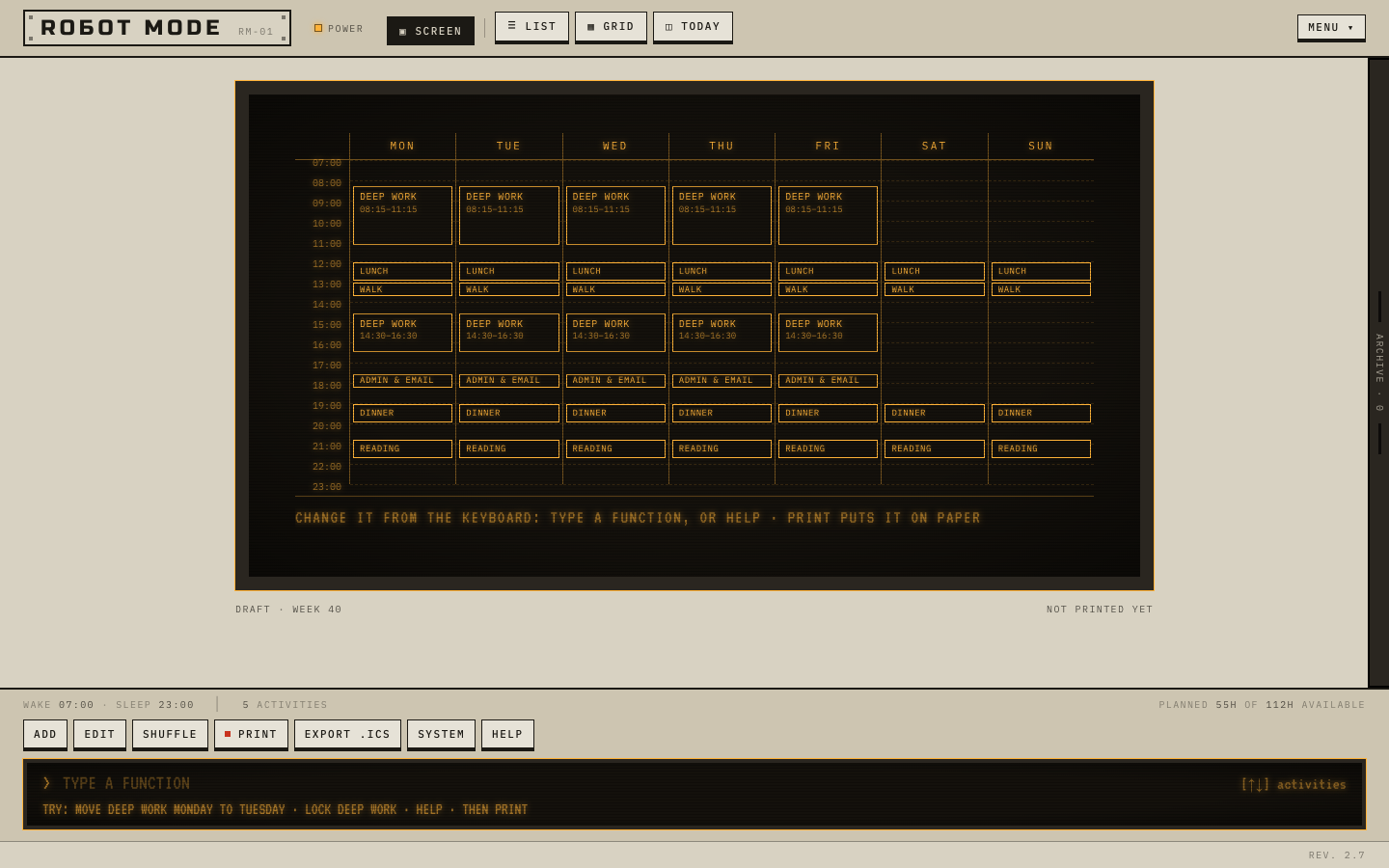
Solved by the real engine from those five lines when this page was built, not drawn by hand. Deep work stays in the mornings, the gym spreads across the week, nothing overlaps.
How it works
Decide once. Then stop deciding.
A few minutes of setup. After that, the week is planned and you just follow it.
Step 01
List what you want
A line each: a name, how long, how many times a week. Then when you wake, sleep and eat. Pin what can't move, like work or classes, to its hours.
> gym 1h15 4x
Step 02
It finds the time
Every session gets a slot: in the hours you prefer, spread across the week, around meals, travel time and each other. Don't like it? Ask for another arrangement.
> shuffle
Step 03
Adjust, then lock it in
Move a session and the rest re-plans around it. When it looks right, print it: that's the version you follow. No printer needed.
> move gym mon to tue
Step 04
Follow it
Export the week to Google Calendar, Apple Calendar or Outlook, download it as a PDF, or pocket today's ticket.
> export
- 07:00wake
- 09:30Deep work3H
- 12:30Lunch45M
- 14:15Spanish30M
- 17:15Gym1H 15M
- 19:30Dinner45M
- 21:15Reading45M
- 23:00sleep
Wednesday of the week above, as the ticket printer gives it: the day on one strip.
How it decides
A real scheduler, not a guess.
A plain engine places every session by a handful of rules, tries the week twenty ways and keeps the best one.
Your preferred hours
Gym in the evening, reading before bed. A session leaves its window only when nothing else fits, and then it says so.
Spread across the week
Gym 4× lands Monday, Wednesday, Friday and Sunday, not two back-to-back pairs.
Built around real life
Meals, travel time either side, and the first hour after you wake stay clear.
Fixed where you need it
Work, classes, a weekly call: pin them to their hours, like work 8h 5x at 9:00 weekdays, and the rest is planned around them.
Same input, same week
No AI and no guessing. Every block can tell you why it's where it is.
06:30 doesn't fit between waking up and going to sleep
Ways out · each one checked
- 1. Move run to 07:00
- 2. Do run in the morning instead of always at 06:30
- 3. Wake up at 06:30 instead of 07:00
The machine
One screen, one keyboard.
The week is drafted on the screen. You change it by typing, in plain words or shorthand; it completes as you go and says what Enter will do before you press it. Every key is also a button.
- > gym 3 times a weekGYM 4× → 3×
- > move gym mon to tueMOVE GYM MON 17:15 → TUE 17:15
- > lock deep work mondayLOCK DEEP WORK MON 09:30 WHERE IT IS
- > remove spanish mondayREMOVE SPANISH MON 14:15 FROM THIS WEEK
- > _
Answers from the real command reader, on the sample week. help lists every command.
No AI
A plain scheduling engine, no model and no prompts. Same input, same week, every time, and every block can say why it's there.
Private
It runs in your browser. No account, no sign-up, nothing uploaded. Your week stays on your device.
Yours to keep
Free to use. Export it to Google Calendar, Apple Calendar or Outlook, download it as a PDF, or send the setup to another device as a link.
Questions
Before you try it.
What about my job, classes or fixed meetings?
Pin them. Give an activity a fixed time and days, like work 8h 5x at 9:00 weekdays, or choose Always at when adding it, and everything else is planned around it.
Does it sync with Google Calendar?
One way, for now. Export the week as an .ics file and Google Calendar, Apple Calendar or Outlook shows it as a calendar of its own; exporting again updates it instead of duplicating it. Robot Mode doesn't read your calendar.
Do I need a printer?
No. Print is the machine's word for "this is the version I'll follow": it's the plan you export, download as a PDF or keep on screen. Printing it on real paper is up to you.
What if I miss a session, or my week changes?
Change it on the screen: move, remove or lock a session, and the rest re-plans around it at once. Robot Mode plans the week; it doesn't track you or nag you.
How is it different from time-blocking, or from Motion and Reclaim?
Time-blocking by hand means solving the puzzle yourself, every week. AI planners solve it for you, but run on an account and your calendar. Robot Mode solves it in your browser, with no account, and can tell you why each block is where it is.
Does it work on a phone?
Yes: on a phone the week reads as a list, top to bottom. Setting it up is quickest on a computer, where there's a real keyboard to type at.
Is it really free? Where is my data?
Free, with no account. Everything stays in your browser on this device and nothing is uploaded. Back it up to a file, or move it to another device with a setup link.
Stop deciding. Start doing.
Tell it what you want to do this week. It finds the time.
Build my week ▶Free · No AI · No account
Built by @malikbuilds. Questions and feedback welcome there.